
Follow Your Orders and Withdraw Your Money
Every order, every delivery and every dollar in one dashboard, and your money sent to Binance, a USDT wallet or your bank.
Your dashboard
The Overview shows your orders, deliveries, balance and the trend day by day.
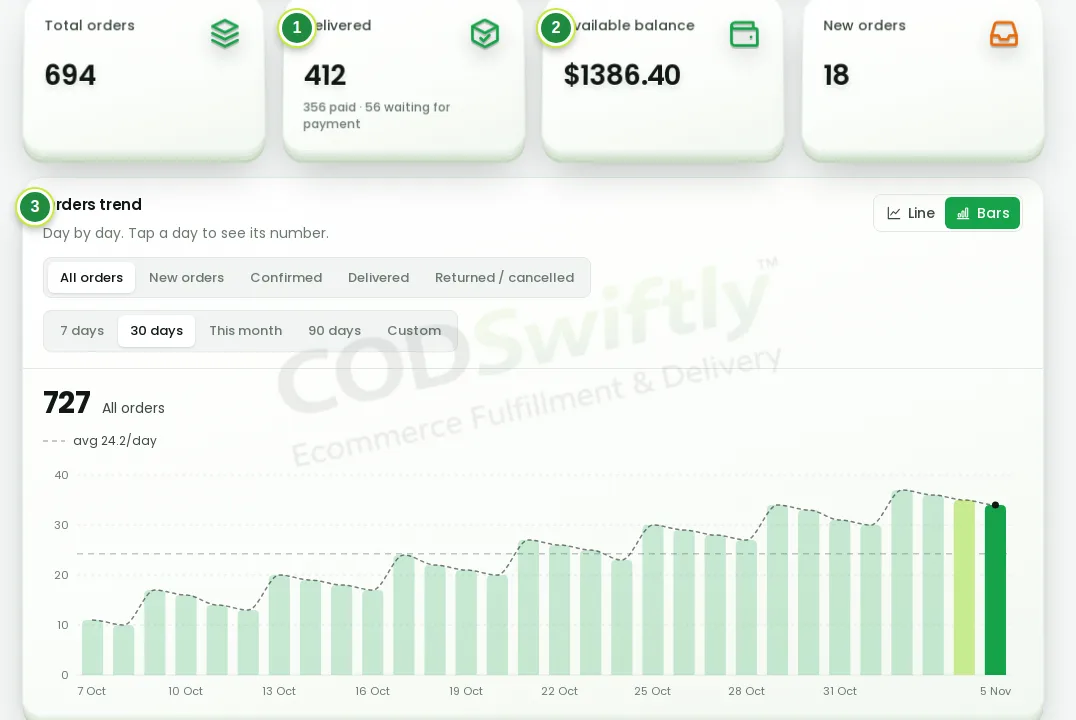
- 1Delivered orders.
- 2Available balance.
- 3Orders trend: day by day.
Follow every order
Open Orders: you see each status, from the new order to the delivery, and the history of each order.
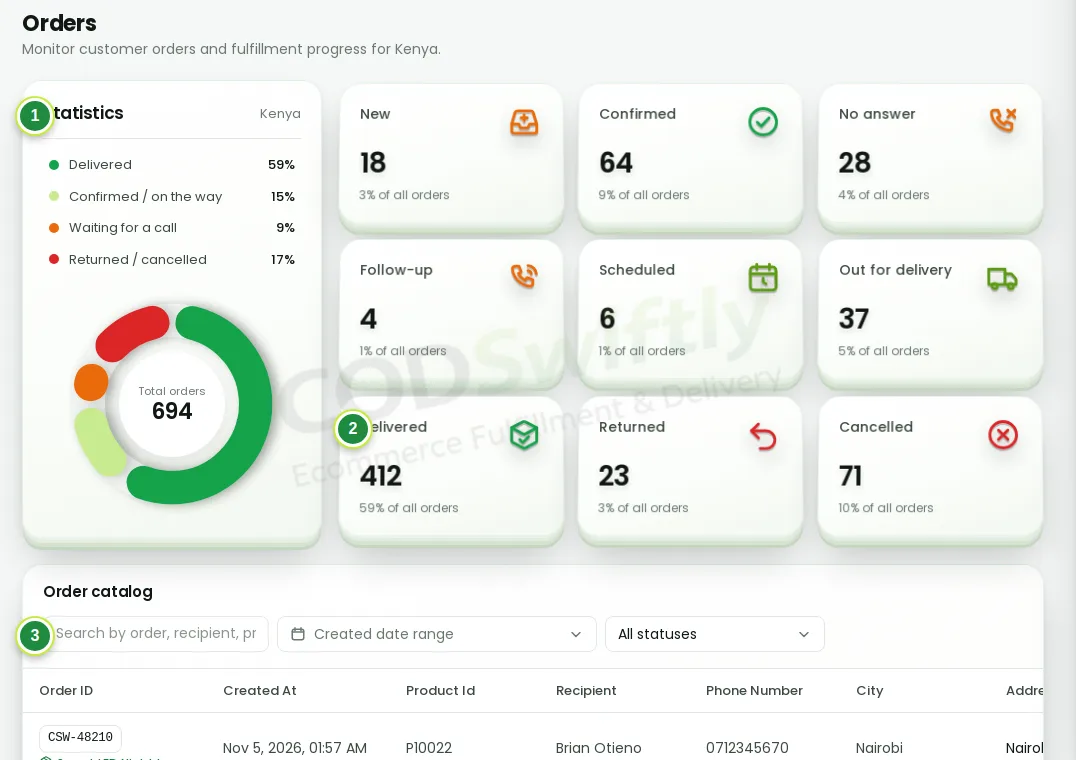
- 1Statistics: delivered, on the way, waiting for a call, returned or cancelled.
- 2Each status with its number.
- 3Search an order by number, name or phone.
Understand your money
Open Finance.
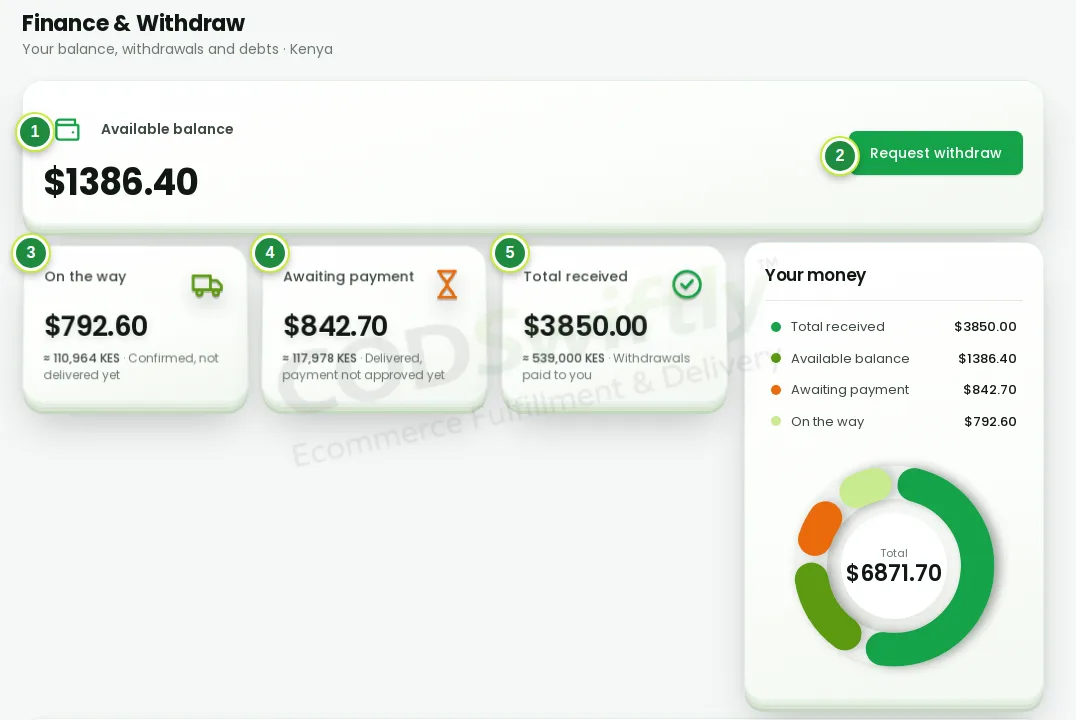
- 1Available balance: what you can withdraw now.
- 2Request withdraw.
- 3On the way: confirmed orders not delivered yet.
- 4Awaiting payment: delivered, the cash is being collected.
- 5Total received: what you already withdrew.
Add a payment method and withdraw
In Finance → Payment methods → Manage, add where you want to receive your money: Binance ID, USDT wallet or bank account.
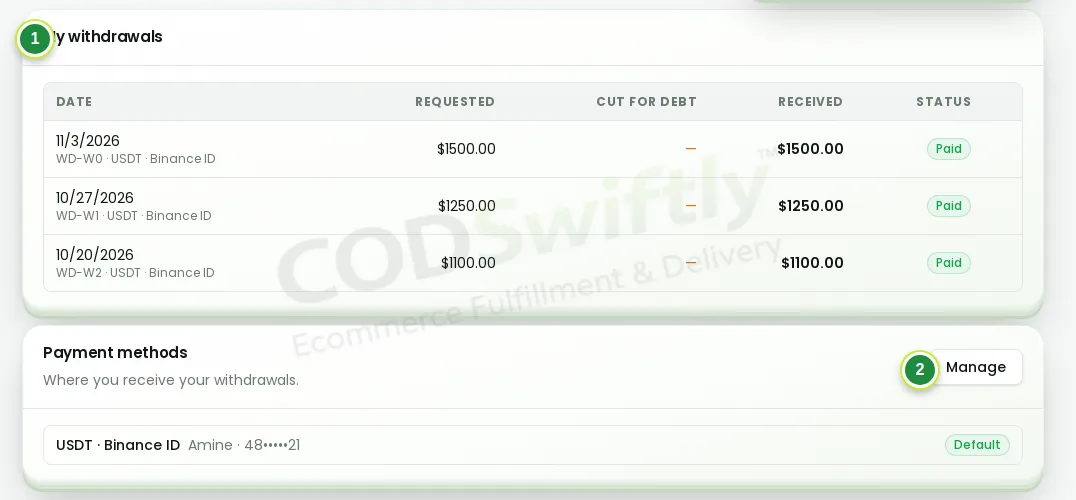
- 1My withdrawals: date, amount and status of each one.
- 2Manage: add or change a payment method.
Then click Request withdraw:
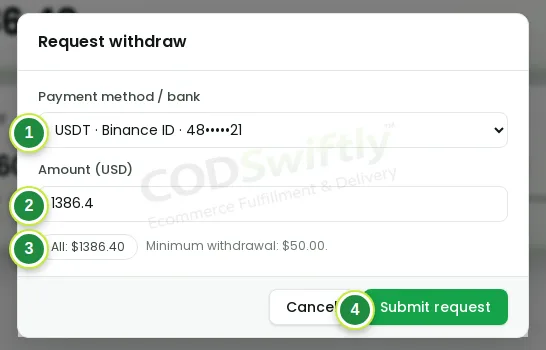
- 1Payment method.
- 2Amount in USD.
- 3All: withdraw your whole balance.
- 4Submit request.
Each country has a minimum amount, shown in the form. Only the owner of the account can request a withdrawal.
The numbers in the pictures are examples that show how the screens work. They are not a promise of results.
Follow the course with a real account
Create your free CODSwiftly account: storage, call center confirmation, delivery and payouts in Kenya, Tanzania, Ghana and Zambia.